Today I will teach you how to use the automatic rental function to rent energy with one click and worry-free. There is no limit on the number of transactions or time, and charges will be deducted based on usage. Make transfers worry-free!
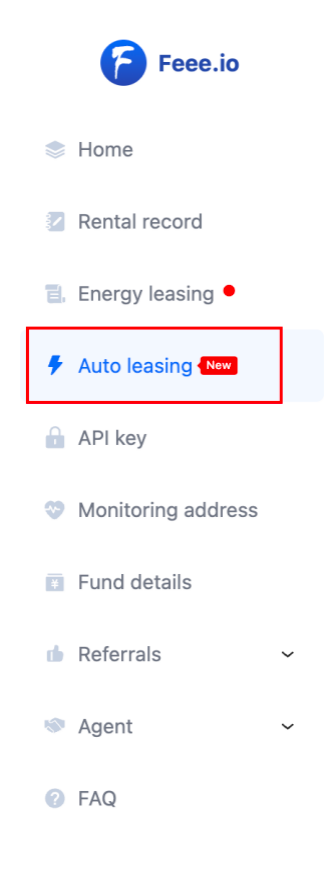
To use the automatic rental function, you need to register as a user and log in to the website. You can find the "automatic rental" function in the left menu of the user center.
After turning on the automatic leasing function, click the "Add automatic leasing" plan. By monitoring the remaining amount of address resources, when the resource amount is insufficient, the resource will be automatically leased.
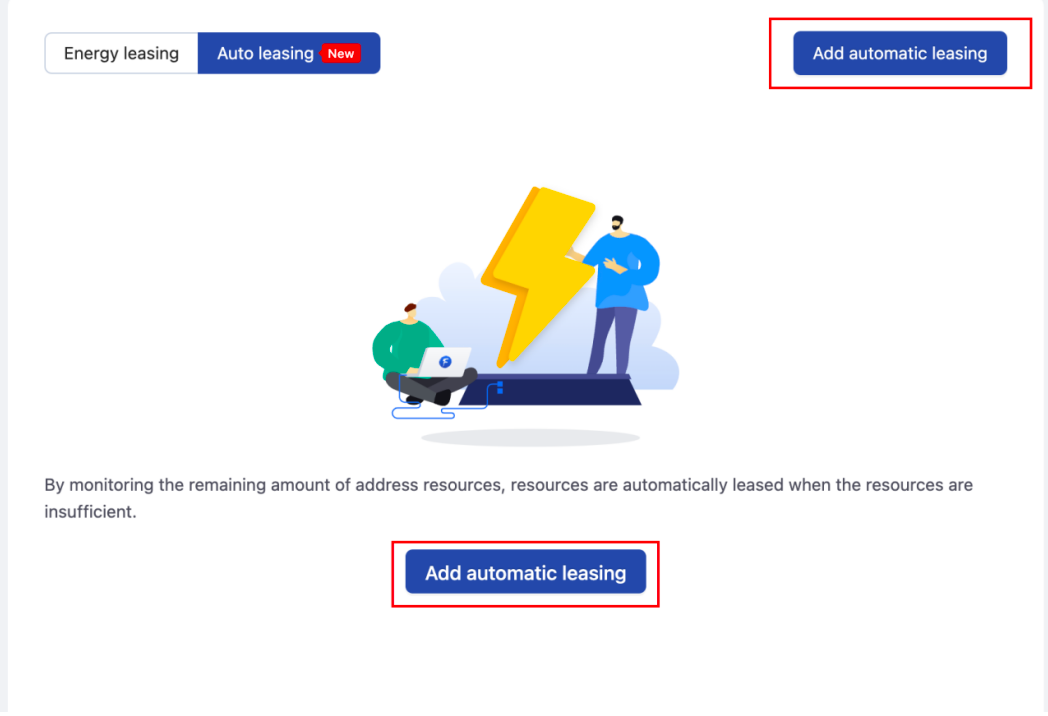
You can set it after opening the function page.
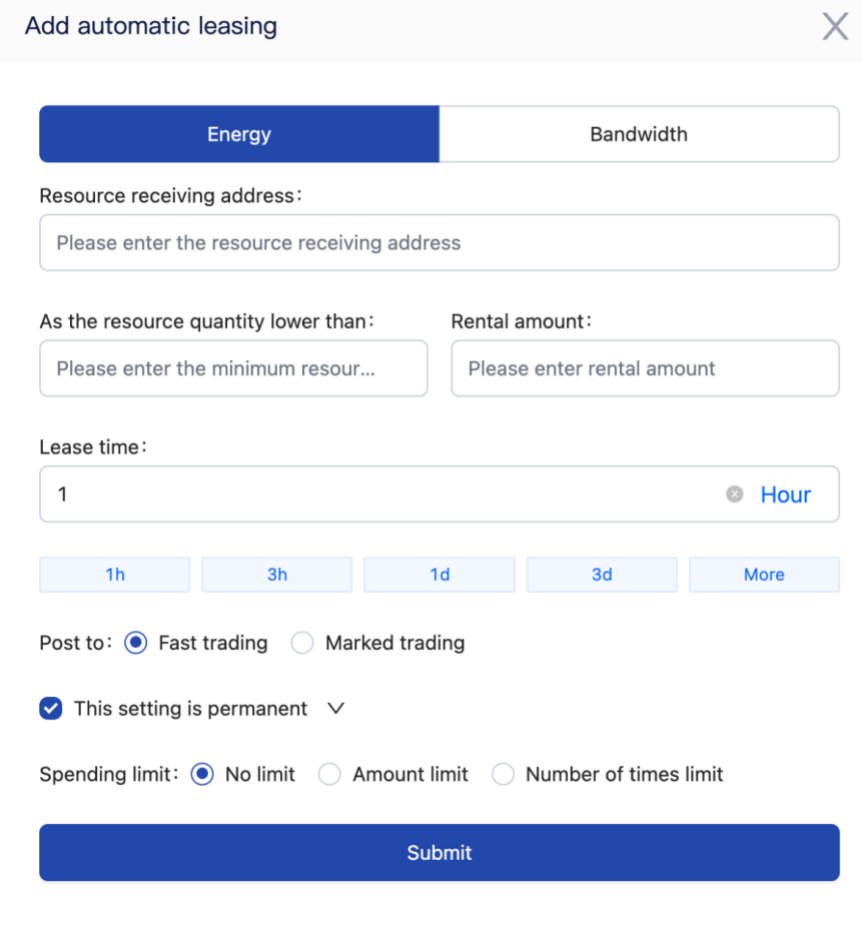
Next we enter the wallet receiving address that requires resources for monitoring and automatic leasing. When the monitored energy is lower than 32,000, 65,000 energy will be rented, the rental time is selected for 1 day, and published to quick transactions. This setting is permanently effective. (If you need to customize the time, you can uncheck it to customize the effective time and end time). The consumption limit can be customized according to your needs. If you select "amount limit", it will be calculated by trx. For example, if you set 1000trx, This set plan will automatically stop when the consumption reaches 1000trx. If you select "Number of Times Limit", for example, if you set 100 times, then this set plan will only automatically stop renting 100 times.
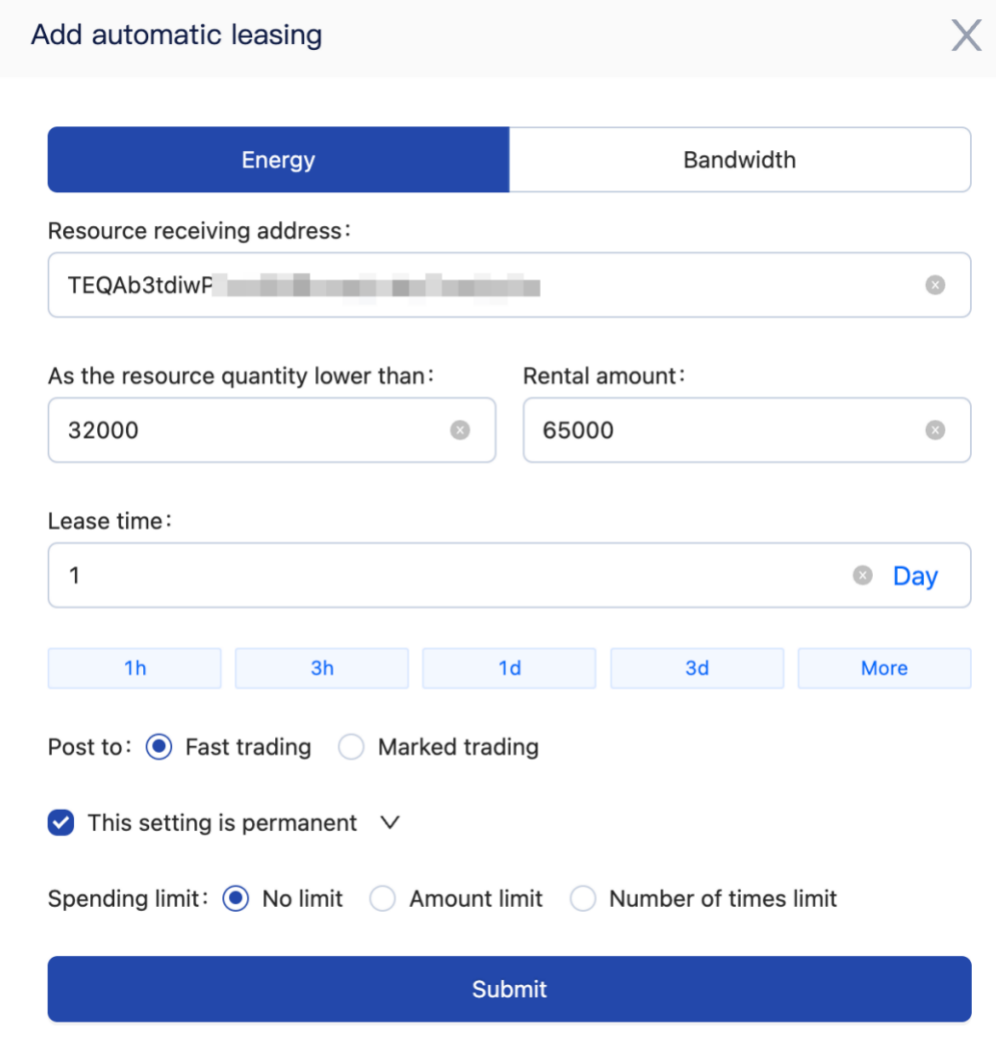
Click "Submit" to enable it immediately, or manually turn on auto-leasing later!

This means that the setting is successful. Click the "Enable" option to start renting automatically! We can also view the rental record, edit, or delete it at any time. If you need to turn off the function, you can also click the enable button again to turn it off! You can open it with one click at any time when you need it!

Note: The above example setting plan is suitable for users who make transfers every day (or customers who have multiple transfers that day, but are not sure how many), because after the rented energy for 1 day expires, if the energy is less than 32,000 the next day, The system will automatically rent an amount to keep the energy on the account sufficient. If you are not sure which day there will be a transfer, you can turn off the function at any time. When your account requires multiple transfers, you can also turn it on at any time. This ensures that you can save TRX burning for each transfer!
You can also customize the plan according to your own needs! Reach the usage scenario that best suits you!